
Simple integration Shoppagina
Webshop quality mark and review system
Want a quality mark and review system for your Shoppaginawebshop? The Shoppagina module makes it easy to integrate the WebwinkelKeur invitation system into your webshop. This allows you to easily invite customers to share a review. You can display reviews without visitors having to leave your webshop.
The Shoppagina module automatically invites customers to share a review. For every completed order, an invitation is automatically sent to the customer, inviting them to share their experience. Reviews increase trust and conversion rates for your webshop.
Installation instructions for the shopping page widget
Install WebwinkelKeur Widget on Shoppagina
To place the review widget on your Shoppagina webshop, follow these steps.
Step 1: Generate the widget code using the Widget Generator Wizard. Log in to the WebwinkelKeur dashboard and click on 'Installation' > 'Widget'. For more information about this step, read Generating the widget code
Step 2: Log in to your Shoppagina webshop .
Step 3: Click on 'Edit Webshop' and go to 'HTML snippets'.
Step 4: Under the heading 'Overview',select the 'Add' option.
Step 5: Type 'WebwinkelKeur' in the Description field and select 'No' for the 'WYSIWYG editor' option. 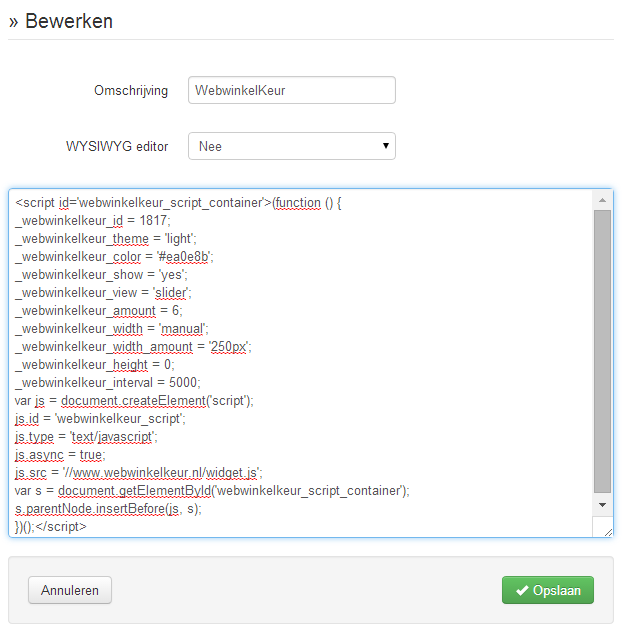
Placing the WebwinkelKeur widget snippetStep 6: Nowpaste the code you generated in the wizard in Step 1 into the text field and select 'Save'.
Step 7: Nowgo to 'Manage pages' at the top (left menu) and select 'Page overview'.
Step 8: Click on 'Edit' on the 'Webshop' page (or another page to add the widget there).
Step 9: Decide where you want to place the widget, for example 'Middle row', and click on 'New page element'.
Step 10: Select 'Dynamic content' and then the option 'A piece of reusable HTML' under the heading 'HTML snippets'.
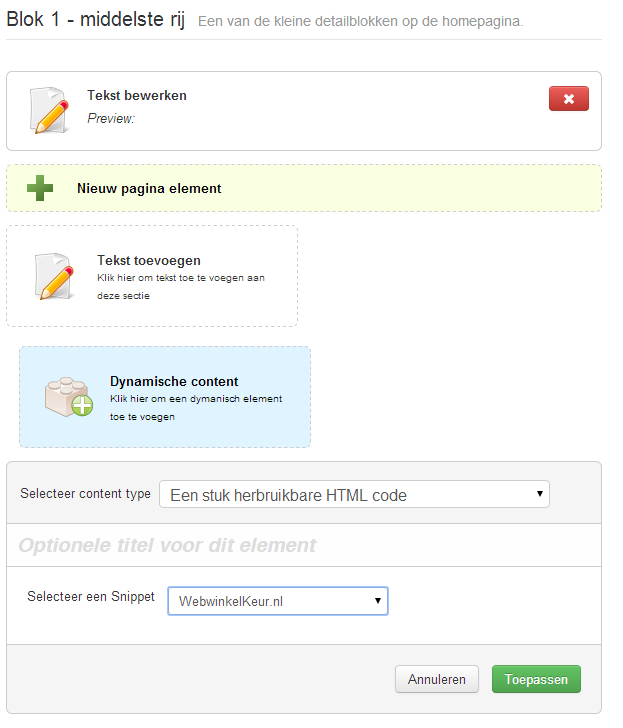
Dynamic content - A piece of reusable code
Step 11: Nowselect 'WebwinkelKeur' under Select a snippet.
Step 12: Click on 'Apply' and then 'Save' to save the changes.
Step 13: Nowview your online store and you will see the WebwinkelKeur widget appear!
Installation module Shopping page
Integration of Shoppagina module for WebwinkelKeur
Follow the steps below to install the WebwinkelKeur module on Shoppagina. Step 1: Log in to your Shoppagina webshop. Step 2: Go to 'Edit my webshop'. Step 3: Click on 'External links' in the left-hand menu, then select 'Customer experience for WebwinkelKeur'. Step 4: Set the link to 'Yes'. Enter your personal webshop ID + API password. You can find this information under 'Wizard' in the 'Installation' tab after logging in to the WebwinkelKeur dashboard. Step 5: Fill in the other options as desired. Step 6: Don't forget to activate the sidebar at the top of the 'Place quality mark' tab. Click on 'Save' to process the changes. Step 7: If necessary, test the link by placing an order and setting it to 'Paid' and 'Shipped'. Then log in to WebwinkelKeur and check under 'Invitations' to see if the invitation is also scheduled to be sent. Step 8: In addition to the link, add supplementary material for better conversion and activate the rich snippets.Installation instructions for shopping page rich snippets
Installation module Shopping page rich snippets
Rich snippet stars are the stars in Google's organic search results (not the stars in Google Ads (formerly Adwords)). Rich snippet stars are primarily intended to display product reviews in search results, for example, in order to enrich the search results with other information. However, they can also be used to add stars to the front page of your webshop in search results. This is at your own risk, however, as Google's policy regarding the use of Rich Snippets may change in the future. Using rich snippets via Shoppagina is easy to set up. First, the Shoppagina link must be activated . After activating the link, the rich snippet code can be easily placed by following these steps: Step 1: Log in to your Shoppagina webshop. Click on 'Edit Webshop'.
Step 2: Nowgo to 'Manage Pages' at the top (left menu) and select 'Page Overview'.
Step 3: Click on 'Edit' on the 'Webshop' page.
Step 4: Decide where you want to place the rich snippet, for example, the 'Page footer'.
Step 5: Under 'External link', select the option 'WebwinkelKeur Rich Snippet'. 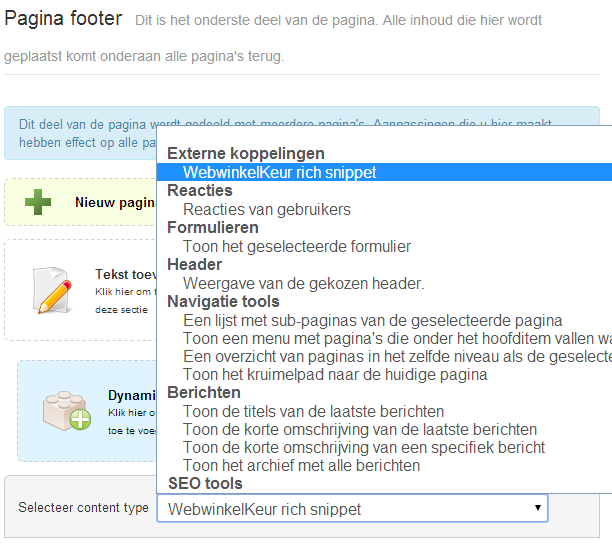
WebwinkelKeur rich snippets
Step 6: Click on 'Apply' and then 'Save' to save the changes.
Step 7: Nowview your webshop and you will see the Rich Snippet appear in the chosen location. Google then decides whether the stars will be displayed in the search results. This takes at least a few days, because Google has to index your webshop.