
WebwinkelKeur Widget Installation Shoppagina
To place the review widget on your Shoppagina webshop, follow these steps.Step 1:Generate the widget code via the Widget generation wizard. Login to theWebwinkelKeur dashboardand click on 'Installation' > 'Widget' . For more information about this step, readWidget code generationStep 2:Login to yourShoppagina webshop.Step 3:Click on 'Edit Webshop' and go to 'Html snippets' .Step 4:Under the heading 'Overview' then choose the option 'Add' .Step 5:Under Description, type 'WebwinkelKeur' and under the option 'WYSIWYG editor' choose 'No' [caption id="attachment_2207" align="alignnone" width="488"]
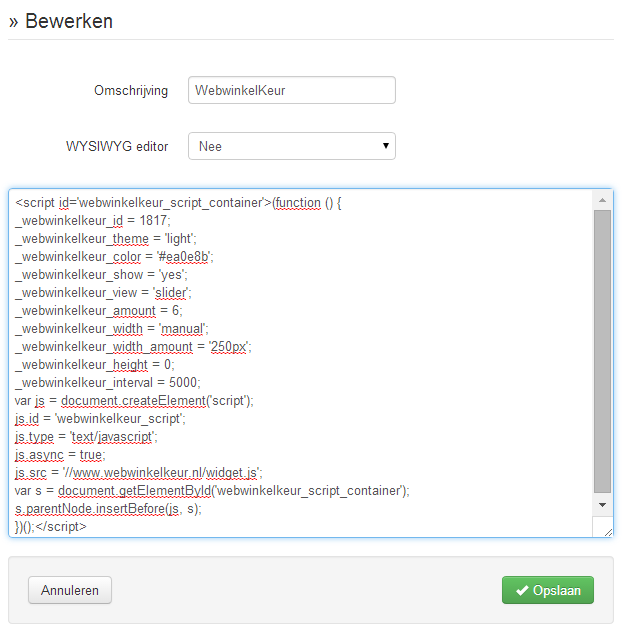
Inserting the WebwinkelKeur widget snippet[/caption]Step 6:Now paste the code as you generated it in the wizard of Step 1 into the text field and choose 'Save'.Step 7:Now go to 'Manage Pages' at the top (left menu) and choose 'Page overview'.Step 8:At the 'Webshop' page, click edit (or another page to add the widget there).
Step 9:Determine where you want to place the widget, for example 'Middle row' and click 'New page element' there.Step 10:Choose 'Dynamic content' and then the option 'A piece of reusable HTML' under the heading 'Html snippets'. [caption id="attachment_2208" align="alignnone" width="428"]
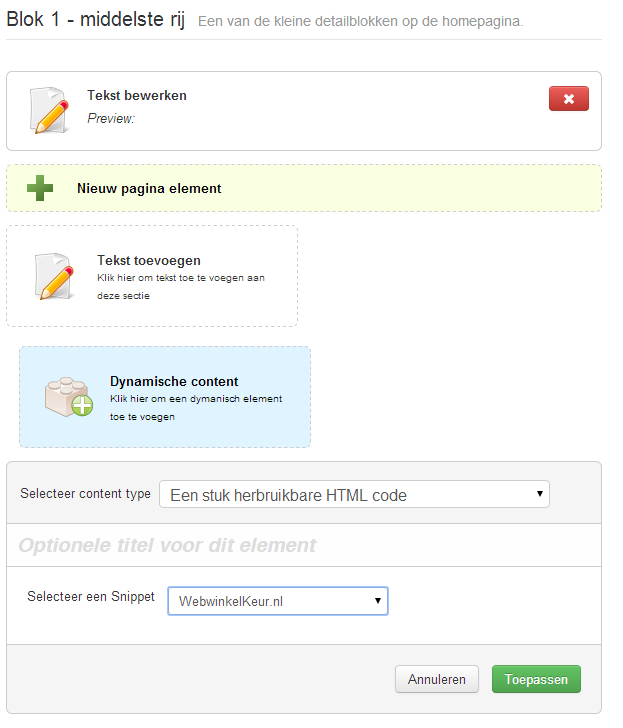
Dynamic content - A piece of reusable code[/caption]Step 11:Now under Select a snippet, choose 'WebwinkelKeur'.Step 12:Select 'Apply' and then 'Save' to save the changes.Step 13:Now view your webstore and you will see the WebwinkelKeur widget appear!