
Placing HTML Code ValuedShops on CCV Shop
In addition to the CCV module, you can easily place our trustmark material on your CCV online store (formerly Biedmeer). This page explains step by step how to easily place the HTML code for the customer reviews widget and/or the trustmark banner on your online store.
1. Generate the widget code through the Widget generation wizard (Login to webwinkelkeur.nl, click on Installation > Wizard, Go to Step 3 of the wizard). For a full explanation, read "Generate Widget Code. Not placing the widget, but the trustmark logo? Then choose the corresponding logo at "Place trustmark" and copy the HTML code.
2. Login to your Biedmeer webshop and go to My Webshop > Settings. And under the tab Web store themes choose .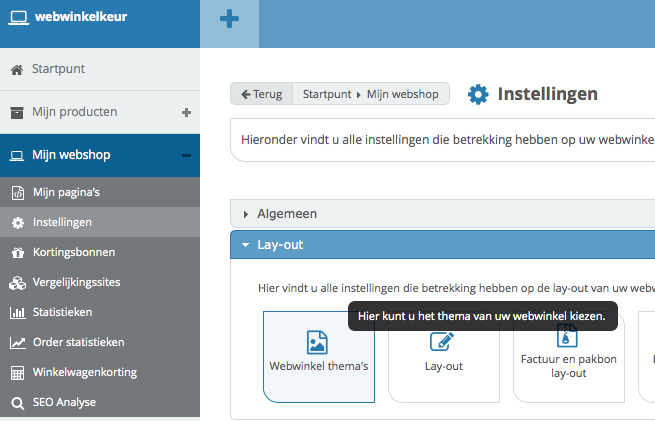 Select webshop themes
4. Then click on the Banners button under the theme you are currently using.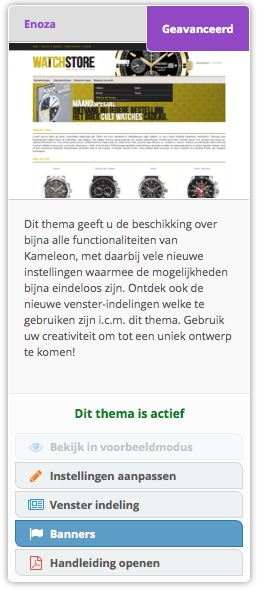
Click on Banners
3. Choose a window set that is not yet in use. In our example, we choose Window Set 2. Then click on Add, a new window will now open.
4. Under type, choose HTML banner. A large text field will now appear.
5. Now paste the code as you generated in the wizard of Step 1 in the place where the widget should appear.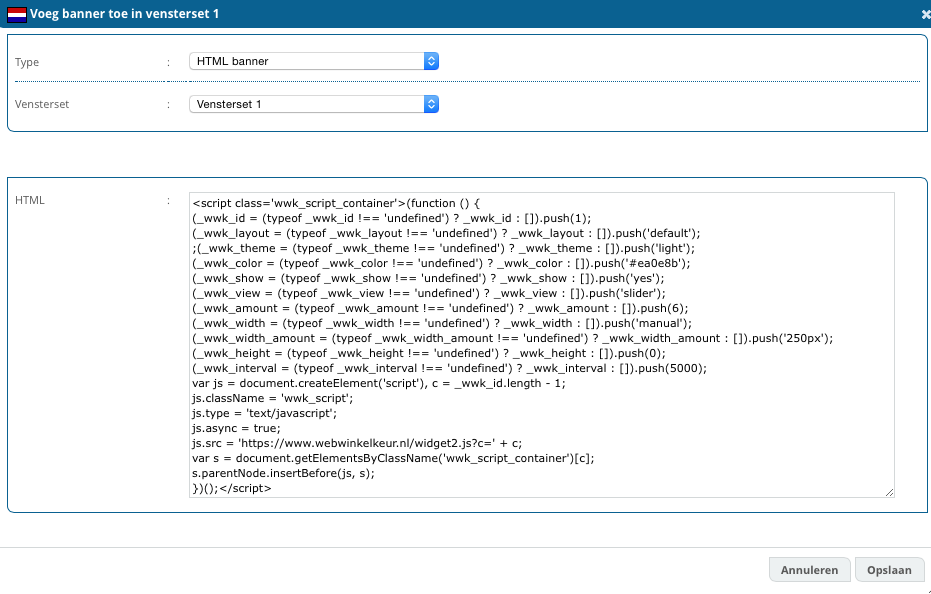 Paste the HTML code in this window[/caption] 6. Go to My Store > Settings > Web Store Themes again and this time choose Window Layout . width="226"]
 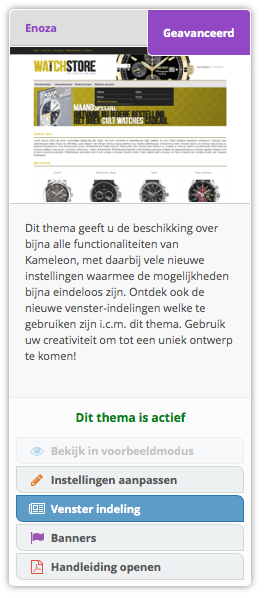 We now choose Window Layout[/caption] 7. Now choose where you want to display the widget (or banner). In the example, we choose Window 1 in the right column. There, under Window Contents, we choose Banners window set 2. If you used a different window set in step 3, choose that window set.
8. Now click Apply at the bottom of the page. The widget is now immediately visible on your web store. Also want to place 1 of the banners? Copy the HTML code of the banner in step 1 and place it in a free windowset in the same way.
In our example the widget is now visible on the right side of the web store.